
Download and install licin on your mobile device
We provide licin access through multiple installation methods to suit your device and preferences. Android users can download the licin APK file directly from our website and install it manually. This method gives you a native app experience with offline caching, push notifications, and faster performance compared to browser access. iOS users can access licin through their mobile Safari browser or any compatible browser without needing to install an app. Web-based access works on any device with a modern browser and an internet connection.
To download licin on Android, visit our website from your mobile device, locate the download link, and tap it to begin the download. Once the APK file is downloaded, you may need to enable installation from unknown sources in your device settings. This is a standard Android security feature. After enabling this setting, open your file manager, find the licin APK file, and tap it to install. The installation process takes less than one minute. Once installed, you can open licin from your app drawer and log in with your account credentials.
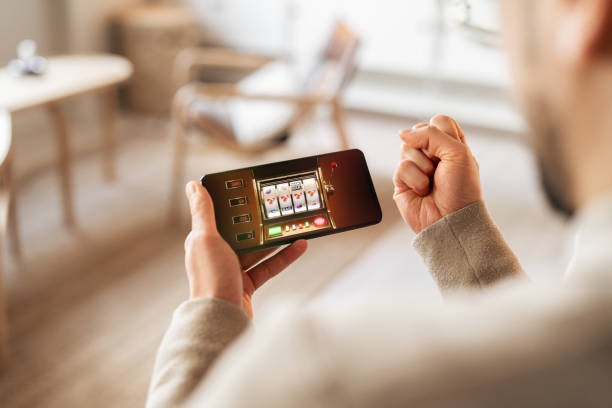
Installation steps for licin on Android
- Visit licin.net from your Android device and tap the Android download link.
- Open your device settings, navigate to Security, and enable "Unknown sources" or "Install from unknown sources".
- Open your file manager, locate the licin APK file in your Downloads folder, and tap it to install.
- Once installation completes, open licin from your app drawer, create an account or log in, and begin using the platform.
Mobile access options on licin
- Android APK: native app with offline cache and push notifications
- iOS browser: access licin through Safari or any mobile browser
- Web app: responsive design works on any device with a modern browser
- All methods support live-dealer tables, sportsbook, slots, and esports
- Account and funds are synchronized across all access methods
App versus browser access on licin
The licin native app for Android offers several advantages over browser access. The app caches certain data locally, allowing you to view your account history and game information even without an active internet connection. Push notifications alert you to live events, promotional updates, and account activity. The app interface is optimized for touch interaction and loads faster than a web browser on slower connections. The app also provides a more consistent experience across different Android versions and device types.
Browser access to licin works on any device with a modern web browser, including iOS, Android, and desktop computers. Browser access requires no installation and no permission to enable unknown sources. Your account and funds are identical whether you access licin through the app or the browser. You can switch between app and browser access at any time without losing your account or funds. Browser access is ideal if you prefer not to install apps or if you want to access licin from multiple devices without downloading separate apps.

Device compatibility and system requirements for licin
The licin Android app requires Android 7.0 or later. Most Android devices released in the past five years meet this requirement. If your device is running an older version of Android, you can still access licin through your mobile browser. iOS users can access licin through Safari or any compatible browser on iOS 12.0 or later. Desktop users can access licin through any modern web browser including Chrome, Firefox, Safari, and Edge.
We recommend using a device with at least 100 MB of free storage space for the Android app and a stable internet connection for optimal performance. Mobile data connections (4G, 5G) and Wi-Fi both work well with licin. If you experience slow performance, try closing other apps, clearing your browser cache, or moving closer to your Wi-Fi router.
Troubleshooting common installation issues on licin
If you encounter an error when installing the licin APK on Android, the most common cause is that your device does not have permission to install apps from unknown sources. To fix this, open your device settings, navigate to Security or Apps, and enable "Unknown sources" or "Install from unknown sources". This setting allows you to install apps from sources other than the Google Play Store. After enabling this setting, try installing the licin APK again.
If you see a certificate or security warning when downloading the licin APK, this is normal. The warning appears because the APK is not signed by Google Play. You can safely proceed with the download and installation. If your browser blocks the download, check your browser settings and ensure that downloads from licin.net are allowed. If you continue to experience issues, contact our support team through in-app chat or email. Our team can provide step-by-step guidance for your specific device and Android version.
Data security and account protection on licin mobile
We at licin protect your data on mobile devices using the same security standards as our web platform. All communication between your device and our servers is encrypted using TLS 1.2 or higher. Your login credentials are never stored on your device in plain text. When you log out of licin, your session is terminated and your credentials are cleared from your device's memory.
The licin app requests only the permissions necessary to function: internet access to connect to our servers, and storage access to cache data locally. The app does not request access to your contacts, camera, microphone, or location. Your account funds are stored securely on our servers, not on your device. If you lose your device or uninstall the app, your account and funds remain safe. You can log in from another device and access your account immediately. We recommend using a strong, unique password for your licin account and enabling two-factor authentication if available.